Cost Proposals
How to create a cost proposal:

Creating a cost proposal
How to create a cost proposal:
- Clinicians will create a Teams Task under Operations → Assessments → Assessment Tasks → Cognitive Assessments or Screenings & Questionnaires
- The task will list out each assessment/screener/questionnaire/report writing hours requested for the client
- Open the desktop version of the Assessment Cost Proposal spreadsheet to begin calculating the cost of the assessment
- At the top of the document, ensure you are using the correct fees (NDIS, Provisional, General, or Clinical)
- Input the relevant information into the Spreadsheet to calculate the total cost/confirm the quote
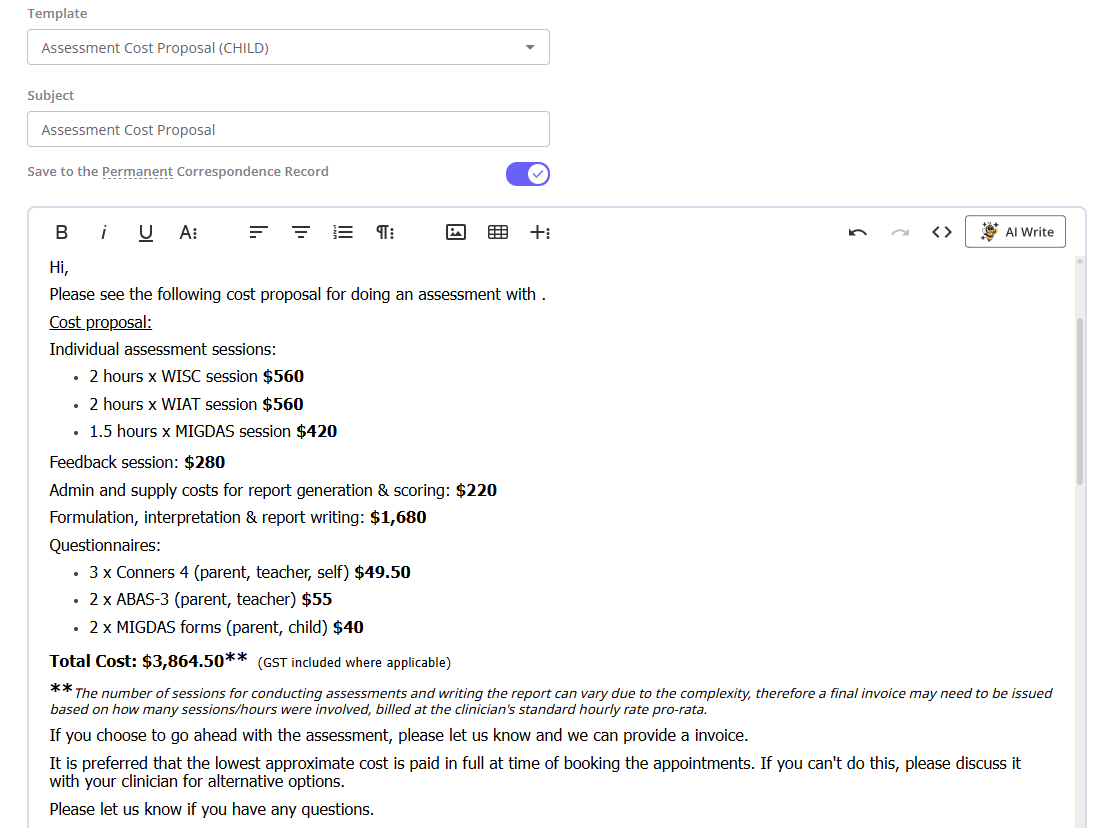
- Once confirmed, open the Client Profile in Zanda and go to Communication → New Email.
- Based on the assessment, select either:
- Assessment & Questionnaire Proposal → for assessments using only questionnaires/screeners
- Assessment Cost Proposal (CHILD) → for child assessments using cognitive/neurodevelopmental assessments
- Assessment Cost Proposal (ADULT) → for adult assessments using cognitive/neurodevelopmental assessments
- Input the details of the assessment.
- Click Save and Send.
- In the Teams Task, comment 'Cost proposal sent'.

Quote Accepted
Once a client accepts the cost proposal:
- The client will reply to our cost proposal email either accepting or declining the assessment costs.
- If they accept, reply with:
'Thanks for confirming!
We have just sent through an invoice via Square and will send you the assessment questionnaires in separate emails.
Please let us know if you have any questions.'
- In the Teams task, comment 'Quote accepted'.
- Unless otherwise discussed, we send an invoice via Square for the full assessment costs. For NDIS Plan Managed clients, assessments are billed as we go. To send an invoice via Square:
- Sign into Square and navigate to Payments & Invoices → Invoices → Invoices.
- Click Create Invoice → Single.
- Click Add Customer → + Create New Customer and input the client/parent's name and email address.
- Add each item line as per cost proposal.
- Note: remove the GST and credit card surcharge from any assessment/feedback sessions. Remove GST from any questionnaires/screeners, but keep credit card surcharge.
- On the right hand side, click Schedule and change from Due today to Due in 7 days.
- Send the invoice.
- In the Teams task, comment 'Square INV#___ sent".
- Once a payment is received, follow the steps outline in Payments.