Referrals & Mental Health Care Plans
Our clients are often referred to Therapy House by their GP, who will create a personalised Mental Health Care Plan (MHCP) for them that outlines their goals and outcomes for…

Our clients are often referred to Therapy House by their GP, who will create a personalised Mental Health Care Plan (MHCP) for them that outlines their goals and outcomes for psychological treatment, as well as the number of sessions the plan covers.
Referrals
A referral from a GP is valid for 12 months from the date of the referral. Referrals from a specialist are valid for 3 months from the date of the referral.
MHTP
MHTP plans cover the 10 Medicare rebated sessions that can be used within a calendar year. A MHCP generally will be for an initial 6 sessions, and will require an update from the clinician to the GP after these sessions have been completed. A further 4 sessions can be approved and require a re-referral from the client's GP.

Receiving Referrals & MHCPs
Referrals and MHCPs are typically sent to us from a client's GP via fax, email or through Medical Objects. Clients may also bring a physical copy of their referral into their session.
Fax/Email
When a referral/MHTP is faxed/emailed to us, we will receive it in the admin inbox.
Existing Clients:
- Download the PDF from the email.
- In Zanda, find the relevant client and click on Admin → Admin Files.
- Upload the document to Admin Files.
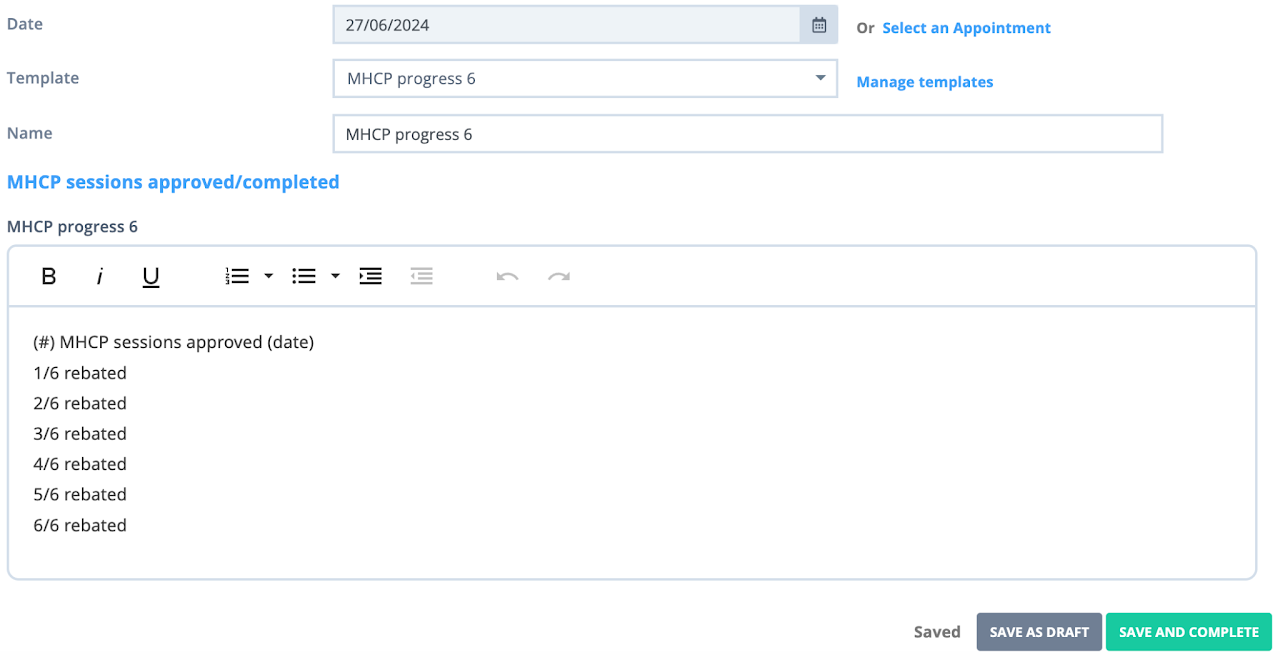
- Check the referral/MHCP to confirm how many sessions have been approved for Medicare rebates, and click on Admin → Admin Notes.
- Create a new note and select either the MHCP Progress 6 or MHCP Progress 4 template.
- Add in the number of sessions approved and the date of the referral into the note.
- Click SAVE AS DRAFT to save. Do not click SAVE AND COMPLETE as this will lock the note and mean you cannot edit or add to it.
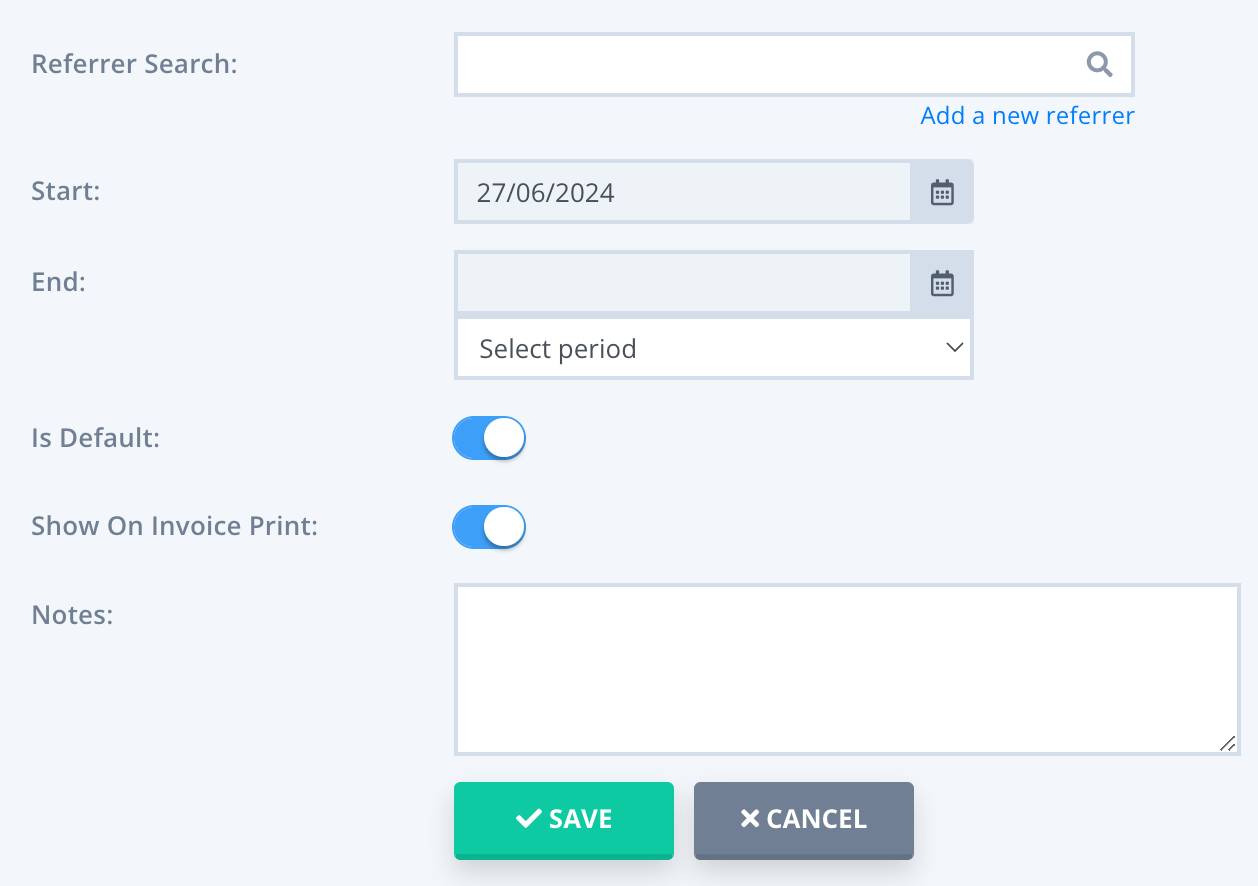
- Under Profile → Referrals, input the referring GP and the start date of the referral.
- Select 12 months as the referral period.
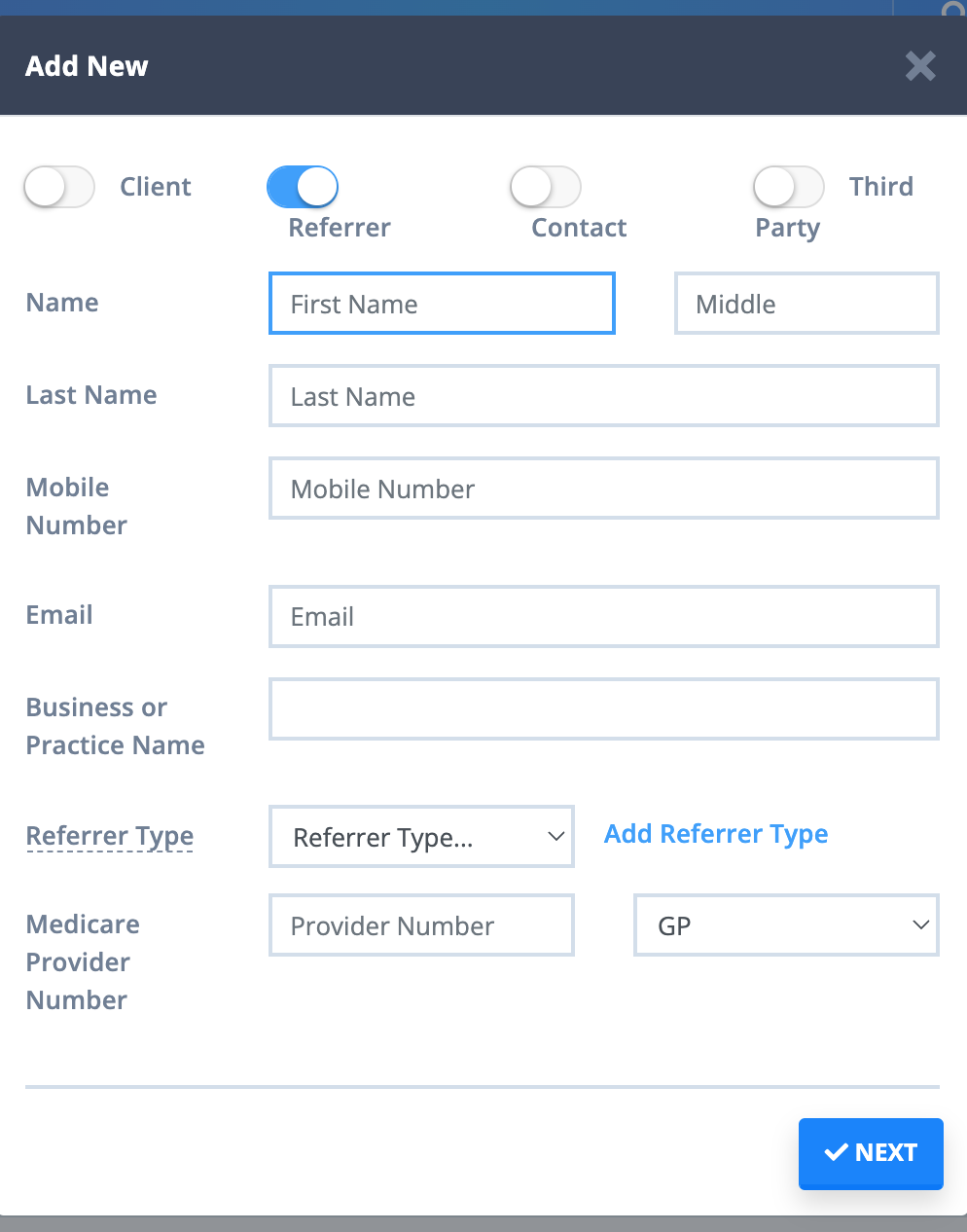
- If the referring GP is new to our system, select 'Add a new referrer' and create a new GP profile with the information found on the referral.
New Clients:
When we receive a referral/MHCP for a new client via fax/email, the first step is to check whether an active waitlist for new clients is in progress or if we are able to immediately offer an appointment.
After completing the steps to creating a New Client Profile, follow the steps above to add the referral and Medicare sessions to their file.
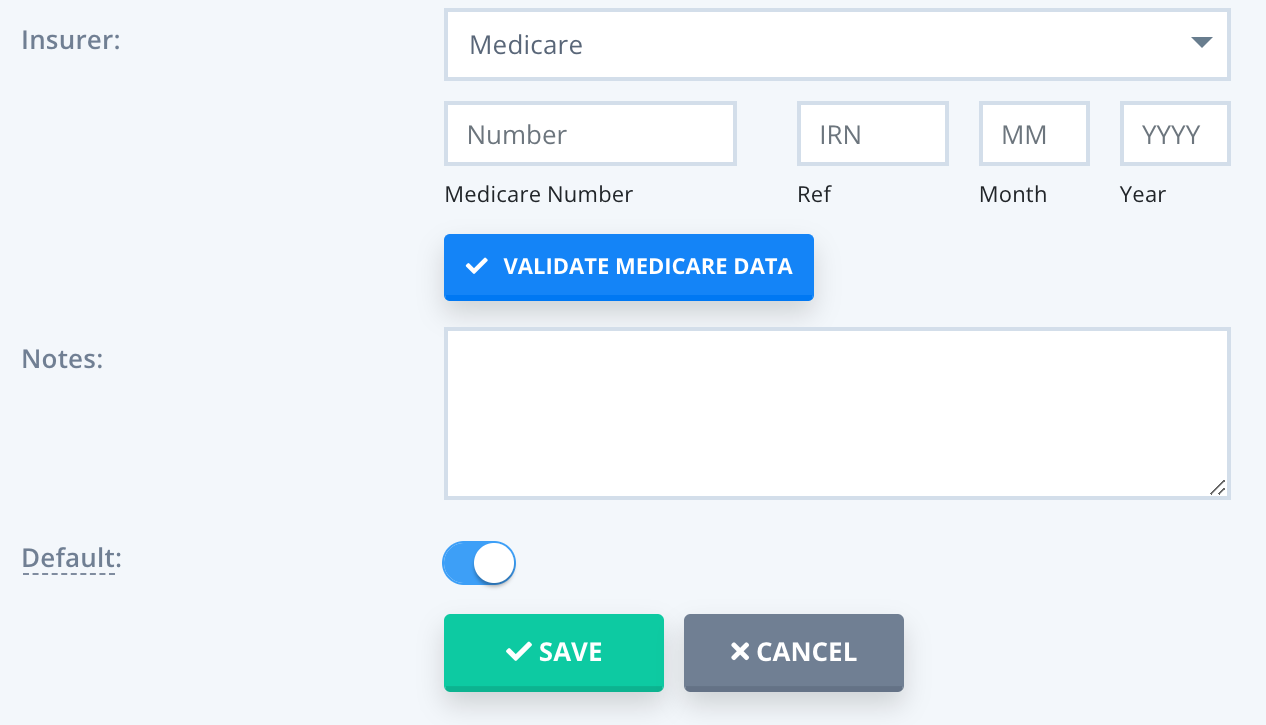
- Ensure that the client's Medicare details have been entered into their Client Profile, which can be accessed through Profile → Details OR Billing → Insurance.
- If the client is under 18, ensure that the parent/guardian nominated as the Medicare claimant in the consent form has their Medicare details entered into their Contact Profile.
- Once the claimant details are added, return to the Client Profile and under Billing → Billing Set Up set the Bill To: to the claimant.
Medical Objects
When a referral/MHCP is sent to us via Medical Objects, we will receive an email in the admin inbox notifying us of an 'Unreviewed Document'.
Existing Clients:
- Log into Medical Objects and select a provider.
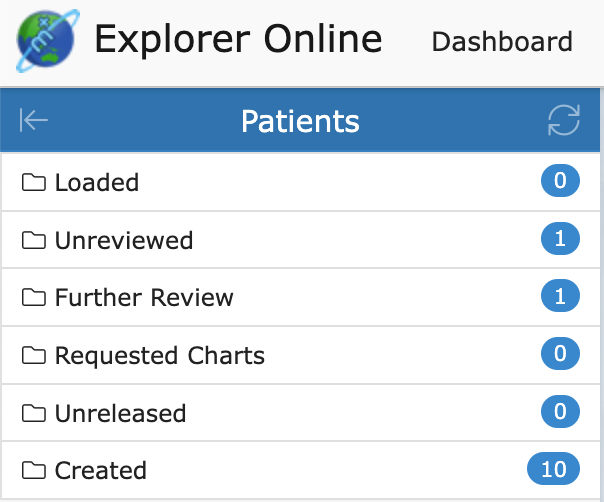
- In the top left corner of the page, opened the 'Unreviewed' folder under Patients.
- Open the 'Unreviewed' document and select More → Print → Save as PDF.
- In Power Diary, find the relevant client and click on Admin → Admin Files.
- Upload the document to Admin Files.
- Check the referral/MHCP to confirm how many sessions have been approved for Medicare rebates, and click on Admin → Admin Notes.
- Create a new note and select either the MHCP Progress 6 or MHCP Progress 4 template.
- Add in the number of sessions approved and the date of the referral into the note.
- Click SAVE AS DRAFT.
- Return to Medical Objects, and select 'Mark as Reviewed'.

New Clients:
When we receive a referral/MHCP for a new client via Medical Objects, the first step is to check whether an active waitlist for new clients is in progress or if we are able to immediately offer an appointment.
After completing the steps to creating a New Client Profile, follow the steps above to add the referral and Medicare sessions to their file.
Physical Copy
If a client brings their referral/MHCP to their first session, ask them to give it to you to scan into the system. Always remember to ask if they'd like the physical copy back! If not, place in the blue bin behind the printer to be shredded.
As the client has already been booked for their intake appointment, the steps for existing and new clients are the same when scanning in a referral/MHCP.
All Clients:
- Place the referral in the top slot of the printer.
- Select 'Send' on the printer homepage screen.
- Select 'Address Book' and tick the admin email address.
- If the referral is double sided, ensure that the 'Function' settings are set to scan both sides of the document.
- Press the green 'Start' button on the printer and the document will scan.
- Once scanned, the file will be sent to the admin inbox with the subject line 'kyocera scan'. Open and save the PDF.
- In Zanda, find the relevant client and click on Admin → Admin Files.
- Upload the document to Admin Files.
- Check the referral/MHCP to confirm how many sessions have been approved for Medicare rebates, and click on Admin → Admin Notes.
- Create a new note and select either the MHCP Progress 6 or MHCP Progress 4 template.
- Add in the number of sessions approved and the date of the referral into the note.
- Click SAVE AS DRAFT to save.