Telehealth Appointments
You can check the mode of your client sessions at the beginning of the day by clicking on the appointment and looking at the FLAG - At a glance, pink appointments represent…
Prior to Telehealth Appointments
- You can check the mode of your client sessions at the beginning of the day by clicking on the appointment and looking at the FLAG - At a glance, pink appointments represent online sessions
- If you have a Telehealth appointment, reception should have emailed a link to the client when the session was created, but you can double check by going to the client profile and clicking on Communication > Activity
- Ensure that you have Zoom downloaded on your computer and iPad in case of technical issues
- Sign into your Therapy House Zoom account by using details obtained from admin

Scheduling a Telehealth Appointment
- If admin have not been able to set up a telehealth appointment, or you have offered it to a client with short notice, you will need to send them the invitation
- In power diary, click on the client and go to Communication > New Email, ensuring you have selected the correct recipient in the TO section
- Log into your zoom app
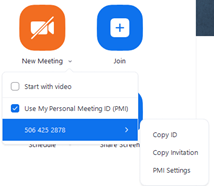
- Click on the arrow under New Meeting and tick Use my personal meeting ID, then click Copy Invitation
- Go back to your Power Diary and paste the invitation
- Delete the unnecessary information, ensuring the client is provided the time, zoom link, meeting ID and passcode
- Click Save and Send to finalise
Conducting Telehealth Appointments
- Sign into your Zoom app
- Click on the arrow under New Meeting and tick Use my personal meeting ID
- Click Join with Computer Audio and ensure your video is turned on
- When your client pops as In the waiting room on your screen, allow them in
- If a client has not arrived after five minutes, give them a call to check if they are having technical difficulties. They may need to log out and back in – or you may want to resend them a new link.
Note: On some computers, your audio is linked to your camera. Ensure you have trialled your zoom settings so that you are confident your sound and camera are working prior to your session. You may need to open the lens on your computer or pop up your camera from the top of the monitor.