Waitlist and Diary Management
Each clinician has a Zanda Waitlist, where we can add clients who request to be contacted when an earlier appointment or preferred appointment time becomes available.

Current Client Waitlist
Each clinician has a Zanda Waitlist, where we can add clients who request to be contacted when an earlier appointment or preferred appointment time becomes available.
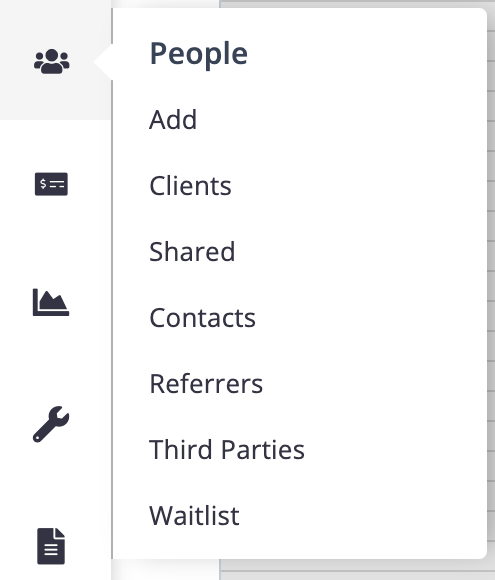
The waitlist can be accessed by either clicking on left Task Bar on Zanda under People → Waitlist or by clicking the calendar symbol on the top Task Bar.
If an appointment is cancelled, the waitlist will automatically pop up with clients who are waiting for an appointment with this clinician at the time and date of the appointment.


Using the Waitlist
If we have had a cancellation:
- Open the waitlist.
- Filter via Practitioner.
- Hover over the note symbol under Available to see the client's preferred appointment time.
- Select the client/s you wish to offer the appointment by clicking the tick box to the left of their name.
- Once selected, clickSend SMS to Selected Clients and select the template Available Appointment.
- Fill in the blanks of the message including date, time and clinician and send the SMS.
- If you are sending the SMS to multiple clients, the first person to reply will get the appointment.
- Once booked, send the other clients a message saying "This appointment is now booked."
Diary Management
If you have spare time in between tasks when seated at reception, it is important to ensure the clinicians diaries are as full as possible. Changing the calendar view to weekly is a great way to see where there are gaps.
If you find an available appointment within the calendar, follow the waitlist steps to ensure this is filled as soon as possible.

Note:Check in with Dr Amelia and Letitia before filling spaces in their calendar to ensure they have not yet offered a client an appointment during the times or dates.