Managing Appointments
Each appointment in Power Diary has a colour that relates to the status of their appointment.

Understanding Client Colours
Each appointment in Power Diary has a colour that relates to the status of their appointment.
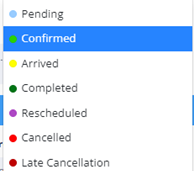
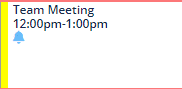
- If you right click on a client's appointment, you can toggle the appointment status.
- Yellow will notify you that your client has arrived. The remaining colours must be used by yourself or reception if you have contact with a client regarding their appointment (changes, cancellations etc).

How are clients reminded about their appointments?
- Clients are automatically sent an email reminder 7 days, and SMS 5 days prior to their appointment. Ideally, they will reply to confirm their appointment, which will change their appointment to light green in your diary.
- If a client does not respond, it will remain light blue. This does not mean they have cancelled, but have not confirmed.
- Reception will look utilise your waitlist to attempt filling any cancellations – however ensure you communicate with them if there is any urgent needs in the case of a cancellation.
Booking time in (or blocking) your calendar
- Select desired time frame by dragging mouse over grid in Power Diary
- On the New Appointment tab on the right of the screen, fill out the relevant details
- Use these tabs to determine whether you are booking client appoints or clinical/personal tasks
- If booking a client, search client name and input relevant comments
- If filling in historical tasks or blocking time for leave or reporting, use the personal tab and title with relevant details
Note: If you are blocking for future report/letter writing tasks, include the client name so that admin can reference for future invoice. If you have online bookings open, it is important to block out paid admin tasks, so that clients are not able to automatically book your vacancies.