Recording Hours Worked
You will need to record your hours of work in Xero, ensuring that timesheets are submitted by the Wednesday night prior to the pay run on Thursday.

How To Record Your Hours (Applicable for Casuals or Variable Part-Timers)
You will need to record your hours of work in Xero, ensuring that timesheets are submitted by the Wednesday night prior to the pay run on Thursday. These can be updated multiple times throughout the fortnight, however we would recommend updating once a week.

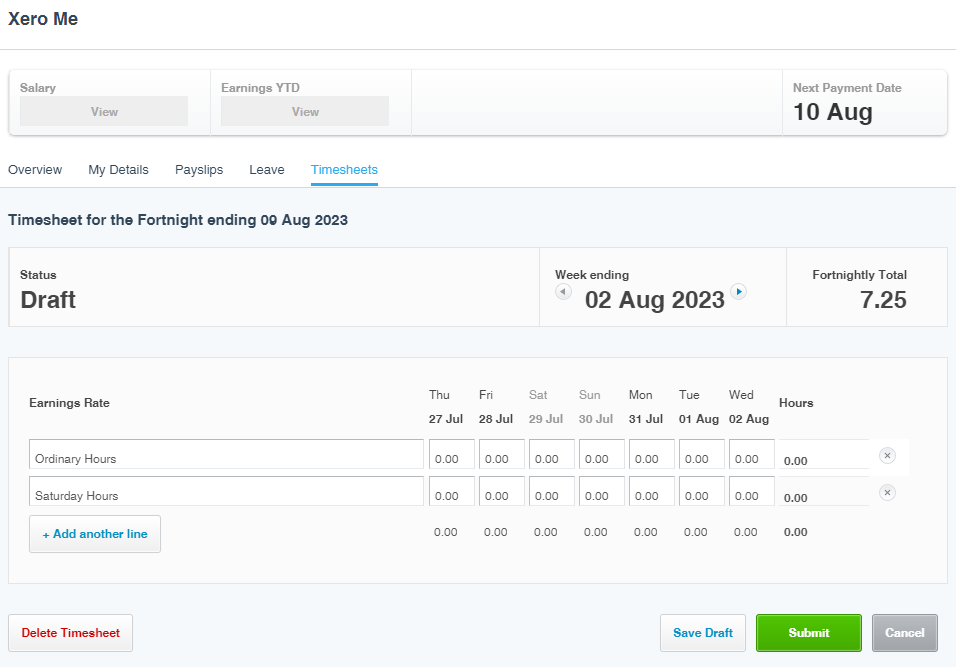
Via Desktop Computer
- Go tohttps://login.xero.com/identity/user/login
- Click “Add Timesheet”
- Choose correct pay period from the dropdown box
- Create a separate line for hours according to relevant pay codes (ie. line for ordinary hours and line for Saturday hours)
- Click on drop down menu to the left and choose appropriate pay code
- Fill in hours worked in the allocated days/dates excluding breaks
- Once hours have been updated, select “Save Draft” (you cannot edit hours once submitted)
- On your/the last day of pay fortnight, ensure your hours are accurately entered and select the “Submit” button
- Select Reggie Beasley from the dropdown menu as the selected Approver
Via Mobile App
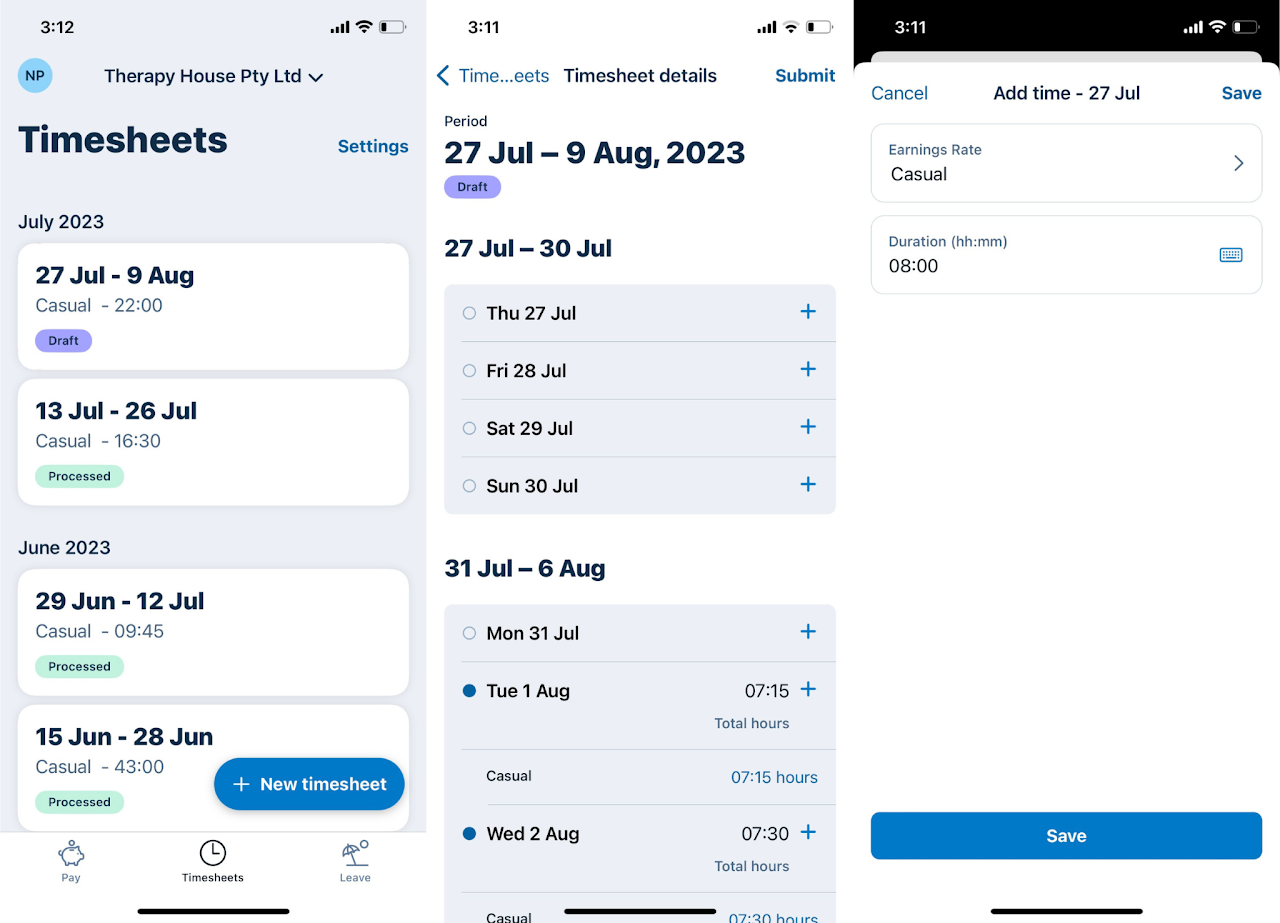
- Download Xero Accounting from your phone's app store
- Click “Timesheets”
- Choose correct pay period from the list
- Click on + symbol on relevant day/s
- Select appropriate pay code (i.e. ordinary hours, Saturday hours or casual earnings)
- Fill in hours worked excluding breaks
- Click save
- Once hours have been updated, click top left 'Timesheets' to return to home page (you cannot edit hours once submitted)
- On your/the last day of pay fortnight, ensure your hours are accurately entered and select 'Submit Timesheet' button
- Select Reggie Beasley from the menu as the selected Approver
Note: Your hours in Power Diary should match your hours in Xero. If your hours have varied from your contracted agreement, please mark in Power Diary.